Setup below was done on July 9, 2026: Windows 11, Docker Desktop 29.6.1, n8n 2.29.9.
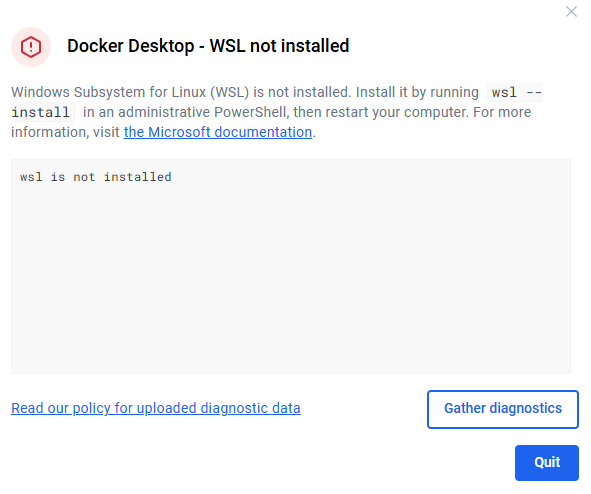
The first thing my n8n install showed me was this:
Docker Desktop - WSL not installed
wsl is not installed. Install it by running wsl --install
in an administrative PowerShell, then restart your computer.
Most install guides skip straight past that screen, because most install guides were written on machines that already had WSL. On a fresh Windows 11 box, this error is step one, not an edge case. So here’s the actual path, in the order it actually happens, with the fixes where you’ll need them.
Why local instead of a VPS? Because for learning n8n, building workflows to export, and running personal automations while your PC is on, local costs nothing and takes half an hour. (If you need webhooks reachable from the internet 24/7, that’s a VPS job — separate guide coming.)
Step 0: Docker Desktop, and the WSL trap
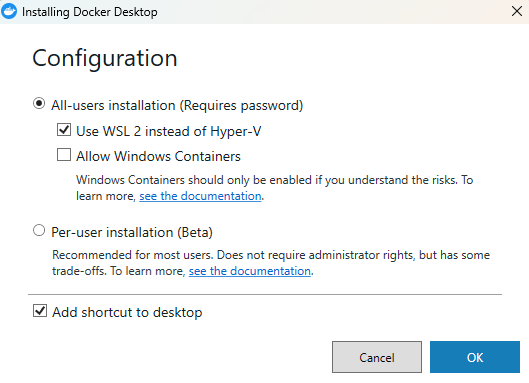
Download Docker Desktop from docker.com — pick Windows AMD64 unless you’re on a Snapdragon laptop. In the installer, keep “Use WSL 2 instead of Hyper-V” checked.
After the restart, Docker greeted me with the WSL error above instead of a whale. The fix takes two minutes:
- Right-click Start → Terminal (Admin)
- Run
wsl --install - Restart again
Second boot, Docker started clean. You can skip the sign-in — everything works without an account.
PS C:\> docker --version
Docker version 29.6.1, build 8900f1d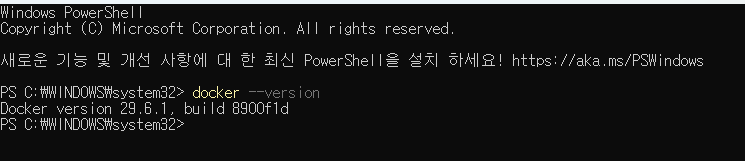
Step 1: One folder, one file
Make a folder (mine is C:\n8n) and create docker-compose.yml in it:
services:
  n8n:
    image: docker.n8n.io/n8nio/n8n
    container_name: n8n
    restart: unless-stopped
    ports:
      - "5678:5678"
    environment:
      - GENERIC_TIMEZONE=Asia/Seoul
      - TZ=Asia/Seoul
      - N8N_SECURE_COOKIE=false
    volumes:
      - n8n_data:/home/node/.n8n
volumes:
  n8n_data:
Three lines in there prevent three future headaches:
GENERIC_TIMEZONEandTZ— the first controls Schedule triggers, the second the container clock. Set both to your zone or your “9 AM daily” workflow fires at 9 AM UTC.N8N_SECURE_COOKIE=false— without it, opening n8n via your machine’s IP address (instead of localhost) throws a secure-cookie error and blocks login. Fine for a local instance; never do this on a server that faces the internet.- The named volume — your workflows, credentials, and encryption key live in
n8n_data. Delete the container freely; this survives.
Step 2: Start it
cd C:\n8n
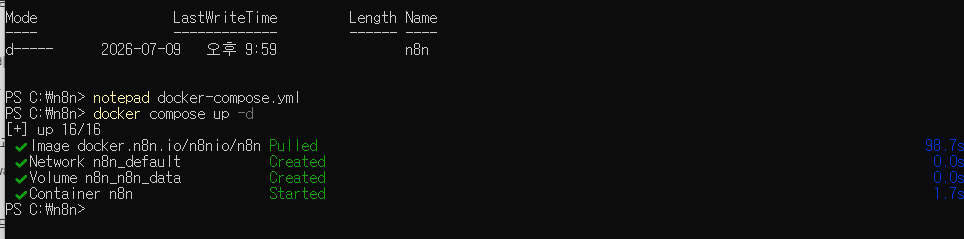
docker compose up -d
Note the space: docker compose, not docker-compose. The hyphenated command is the old V1 tool and current guides still mix them up.
First run pulls the image for a minute or two, then: Started.
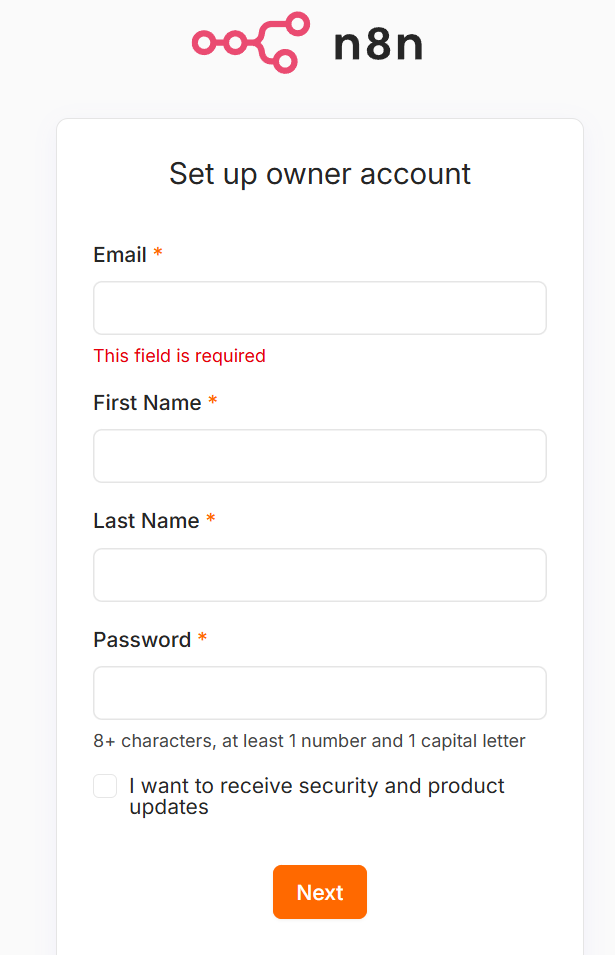
Open http://localhost:5678. The first account you create is the instance owner — 8+ characters, one number, one capital.
Step 3: The free license key (worth 60 seconds)
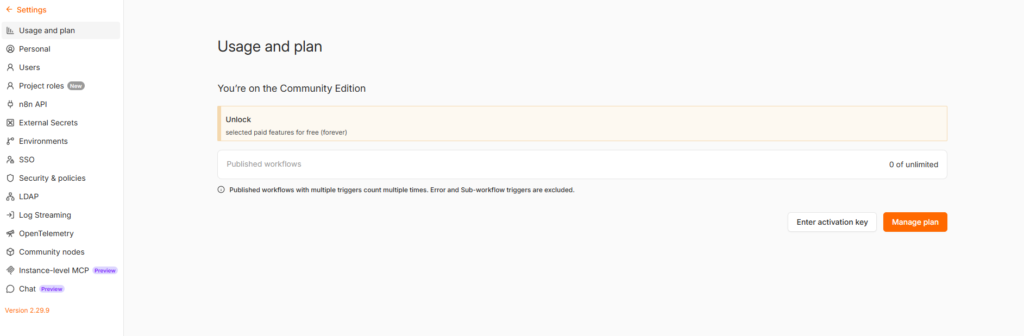
After the setup survey, n8n offers paid features for free — permanently — in exchange for an email: advanced debugging, execution search, and folders. Take it. The key arrives by email; one click activates it. If you later paste the key manually and get “Activation key has already been used on this instance,” that’s not a failure — the email button already activated it.
Settings shows your version at the bottom left. Mine: 2.29.9.
Step 4: Two settings so it survives a reboot
- The compose file’s
restart: unless-stoppedbrings n8n back whenever Docker starts. - Docker itself needs the same courtesy: Docker Desktop → Settings → General → “Start Docker Desktop when you sign in”. Without this, every reboot silently kills your scheduled workflows until you notice.
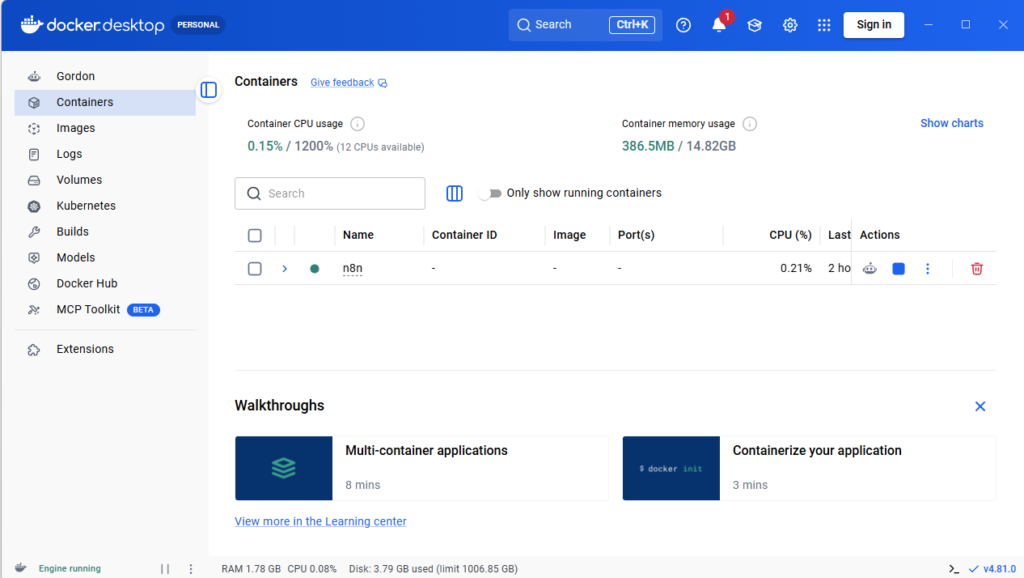
Resource cost on my machine, measured in Docker Desktop: ~386 MB RAM, near-zero CPU idle. Lighter than a couple of browser tabs.
What a local install can and can’t do
Can: everything in the editor, scheduled workflows (while the PC is on), HTTP polling, local AI experiments, building and exporting workflow JSONs.
Can’t: receive webhooks from external services (Stripe, GitHub, Telegram can’t reach localhost), and anything scheduled while the PC sleeps just doesn’t run — n8n does not backfill missed schedules. My release-watcher workflow polls every 2 hours instead of once daily for exactly that reason: a missed run becomes a 2-hour delay instead of a lost day.
When those limits start to hurt, that’s your signal to move to a VPS or n8n Cloud.
Updating later
cd C:\n8n
docker compose pull
docker compose down
docker compose up -d
Your data lives in the volume, so this is safe. Check the release notes before major bumps.
The short version: wsl --install first, one compose file, docker compose up -d, grab the free license key, and turn on Docker’s auto-start. Thirty minutes, zero dollars, and you have the same n8n that runs in production — mine is currently watching npm for new Claude Code releases and messaging me the changelog. That build is the next post.
Independent site — I pay for my own subscriptions and no vendor reviews my drafts. Everything above was run on my own Windows 11 machine on July 9, 2026; screenshots are unedited.